
How to Fix Facebook Messenger Chat Heads & Pop-Up Windows Not Showing on Xiaomi MIUI
If you are using a Xiaomi, Redmi, or POCO smartphone running MIUI and noticed that Facebook Messenger chat heads (bubbles) refuse to appear on your screen when you receive messages, your phone is not broken. MIUI includes an extra layer of privacy and overlay management that blocks apps from generating floating windows by default. In this comprehensive Tech Mash guide, we will walk you through enabling the exact MIUI permissions needed to get your chat heads working seamlessly.

⚡ Quick Resources & Shortcuts
YouTube Viewer ShortcutArrived from our YouTube video? Here is the quick-reference cheat sheet for this walkthrough:
📍 Quick Click Path (Newer MIUI):
Settings → Apps → Manage Apps → Messenger → Other Permissions → Display pop-up window → Accept / Always Allow
📍 Quick Click Path (Classic MIUI / Security App):
Security App → Other Permissions → Messenger → Display Pop Up Window → Accept
- App Applicable: Facebook Messenger (any build)
- Additional Applications Supported: Bluelight Filter, screen dimmers, assistive touches, or any third-party app with overlay issues.
Why Don't Messenger Chat Heads Work on MIUI by Default?
On stock Android devices, granting the standard "Draw over other apps" permission is usually enough for Facebook Messenger to trigger floating chat heads. However, Xiaomi's custom skin (MIUI) introduces a separate permission called "Display pop-up window" (and in newer versions, "Display pop-up windows while running in the background").
Unless this secondary permission is specifically set to Accept or Always Allow, MIUI silently suppresses all floating bubbles and overlay screens, leaving you with only basic notifications in your status bar.
Method 1: Configure Permissions via the MIUI Security App (Classic Approach)
If you are running an earlier or standard release of MIUI, the quickest way to configure this permission is through Xiaomi's native Security suite:
- Open the pre-installed Security app from your home screen or app drawer.
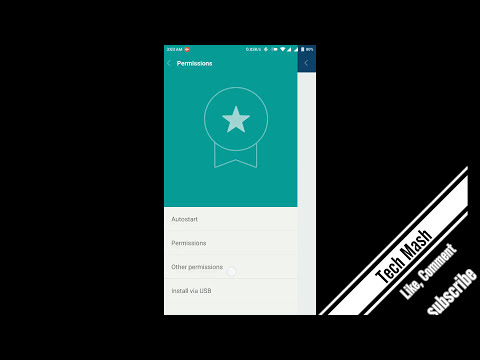
- Scroll down and tap on Other permissions (or navigate to Manage apps → Permissions → Other permissions).
- Locate and tap on Messenger in the applications list.
- Select Permission Manager (if prompted) and find Display Pop Up Window.
- Tap the permission and change the setting to Accept (indicated by a green checkmark).
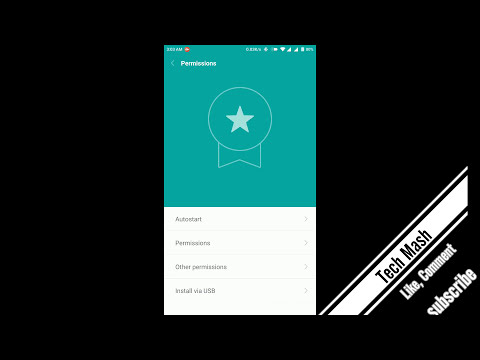
Method 2: Configure via System Settings (Newer MIUI Releases)
On newer iterations of MIUI, the interface has been reorganized. You can access the specific overlay controls directly through the main system menu:
- Launch the Settings app on your device.
- Scroll down and select Apps.
- Tap on Manage Apps and use the search bar at the top to search for
Messenger. - Tap on Messenger to open its App Info screen.
- Scroll down to the permissions section and tap Other permissions.
- Look for Display pop-up window (or Display pop-up windows while running in the background).
- Tap the red cross icon and switch it to Always Allow / Accept.
Important Follow-Up Checks
1. Enable Chat Heads Inside Messenger