
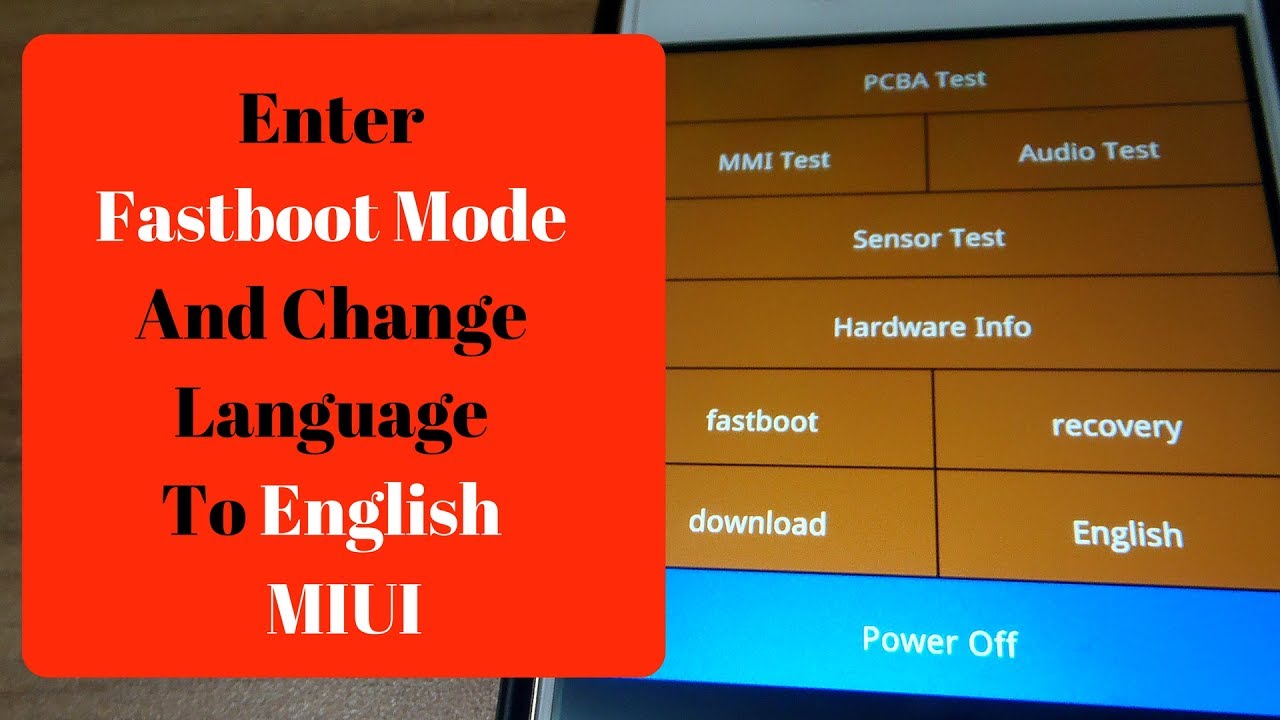
How to Enter Fastboot Mode and Change Language on Xiaomi Devices
Whether you need to flash official firmware via Mi Flash Tool, troubleshoot a bootloop, or navigate the interface after importing a Chinese ROM, this guide walks you through entering Fastboot mode and switching your system language on any Xiaomi, Redmi, or POCO smartphone.
⚡ Quick Resources & Shortcuts
YouTube Viewer ShortcutArrived from our YouTube video? Here is the quick-reference cheat sheet for this walkthrough:
📍 Fastboot Hardware Shortcut: Turn phone completely off → Hold Power + Volume Down simultaneously until the Fastboot logo appears.
📍 Language Settings Path: Settings (Gear) → Additional Settings (Three Dots / 更多设置) → Languages & Input (Globe / 语言和输入法) → Languages (语言) → Select English
# Verify device connection in Fastboot mode
fastboot devices

# Safely exit Fastboot mode via command line
fastboot reboot
- USB Driver: Xiaomi ADB/Fastboot Driver or Mi PC Suite
- Official Flashing Tool: Xiaomi Mi Flash Tool
Part 1: How to Boot into Fastboot Mode
Fastboot mode is a diagnostic and engineering protocol used to flash system images, unlock the bootloader, or run recovery operations from a PC. Follow these steps to enter it manually:
- Completely power down the device: Press and hold the Power button until the power menu appears, then select Power Off. Wait roughly 5 to 10 seconds until the device vibrates and screen activity ceases entirely.
- Engage the hardware button combination: With the phone completely turned off, press and hold the Power and Volume Down (-) buttons simultaneously.
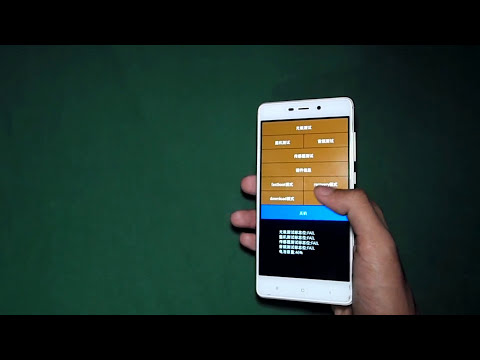
- Wait for the Fastboot splash screen: Keep holding both buttons until you see the orange FASTBOOT text (on newer HyperOS/MIUI builds) or the classic Mi Bunny mascot repairing an Android figure.
- Release both buttons: The device is now locked into Fastboot mode and ready to accept commands or flashing tools over a USB connection.
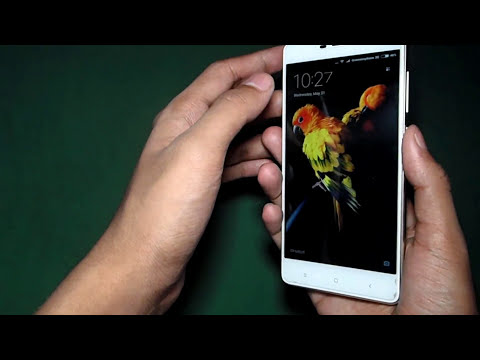
If you entered Fastboot mode accidentally, simply hold down the Power button for 10–15 seconds until the phone vibrates and restarts normally back into the operating system.
Part 2: How to Change the System Language on Xiaomi Devices
If your Xiaomi, Redmi, or POCO phone boots into Chinese or a foreign language after a factory reset or update, follow visual icon indicators to switch it back to English or your preferred language:
- Open Settings: Unlock the phone and locate the Settings app (represented by a gray gear icon).
- Locate Additional Settings: Scroll down the settings list until you see an icon displaying three horizontal dots (...) inside a circle or rounded square. This is Additional Settings (更多设置).
- Open Language Settings: In the next menu, tap the second option from the top, which usually has a globe icon or a stylized letter A next to it (Languages & Input / 语言和输入法).
- Choose Your Language: Tap the very first option at the top of the screen (Languages / 语言). Scroll down the alphabetical list, locate English (United States) or your local variant, and tap to apply. The system UI will update immediately.
Troubleshooting Tips
- Device boots into Recovery instead of Fastboot: Ensure you are pressing Volume Down (-) and not Volume Up (+). Power + Volume Up opens the Mi-Recovery menu.
- PC doesn't detect the phone in Fastboot: Use a high-quality USB-A to USB-C cable connected directly to your motherboard port (avoid unpowered USB hubs). Verify your device status using the command line with
fastboot devices. - Missing languages: Genuine Chinese-market ROMs generally only include Simplified Chinese, Traditional Chinese, and English. For full multi-language support, consider unlocking the bootloader and installing the official Global ROM or a Xiaomi.eu custom build.