How to Fix Auto Shutdown and Restart Problems on Windows 11 / 10
A comprehensive guide from Tech Mash to stop your PC or laptop from unexpectedly rebooting, shutting down in the middle of tasks, or triggering forced update restarts.
⚡ Quick Resources & Shortcuts
YouTube Viewer ShortcutArrived from our YouTube video? Here is the quick-reference cheat sheet for this walkthrough:
Registry Key Path:
HKEY_LOCAL_MACHINE\SOFTWARE\Policies\Microsoft\Windows\WindowsUpdate\AU
DWORD (32-bit) Value Name to Create:
NoAutoRebootWithLoggedOnUser
📍 Quick Run Command: Press Win + R, type regedit, and hit Enter.
- Target Value Data: Set to
1(Base: Hexadecimal). - Applies To: Windows 10 & Windows 11 (Home, Pro, Enterprise, Education).
Why Does Windows Unexpectedly Restart or Shut Down?
Experiencing unexpected restarts or sudden shutdowns can cause severe data loss and disrupt workflow. This issue typically stems from one of three root causes:
- Aggressive Windows Update Policies: Scheduled background updates often trigger forced automatic reboots even while a user is actively logged in.
- Automatic Failure Restarts: Windows is configured by default to restart immediately upon encountering a critical system error (BSOD), preventing you from reading diagnostic codes.
- Thermal or Power Instability: Failing power supply units (PSUs) or overheating CPU components trigger thermal safety shutdowns.
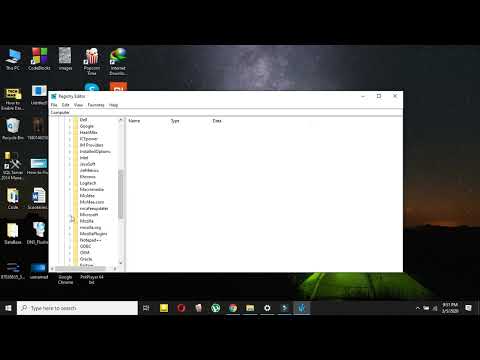
Method 1: Prevent Automatic Reboots via Registry Editor
By configuring the NoAutoRebootWithLoggedOnUser policy, you force Windows to wait until you manually choose to reboot after updates are installed.
- Press Win + R on your keyboard to open the Run dialog.
-
Type
regeditand press Enter or click OK. If prompted by User Account Control (UAC), click Yes. -
In the Registry Editor address bar, paste the following path and hit Enter:
HKEY_LOCAL_MACHINE\SOFTWARE\Policies\Microsoft\Windows
-
Check if a key named WindowsUpdate exists under
Windows:- If it doesn't exist, right-click the Windows folder → select New → Key → name it
WindowsUpdate.
- If it doesn't exist, right-click the Windows folder → select New → Key → name it
-
Right-click on WindowsUpdate → select New → Key → name it
AU(representing Automatic Updates).

- Select the AU folder on the left pane. Right-click on empty space in the right pane, choose New → DWORD (32-bit) Value.
-
Name this new value:
NoAutoRebootWithLoggedOnUser -
Double-click
NoAutoRebootWithLoggedOnUser, change the Value data from0to1, ensure Hexadecimal is selected, and click OK. - Close the Registry Editor and restart your computer to apply the configuration.
Method 2: Disable Automatic Restart on System Failure
If your computer restarts abruptly while gaming or running resource-intensive applications, Windows might be crashing silently and immediately rebooting. Disabling automatic failure reboots allows you to identify error codes.