
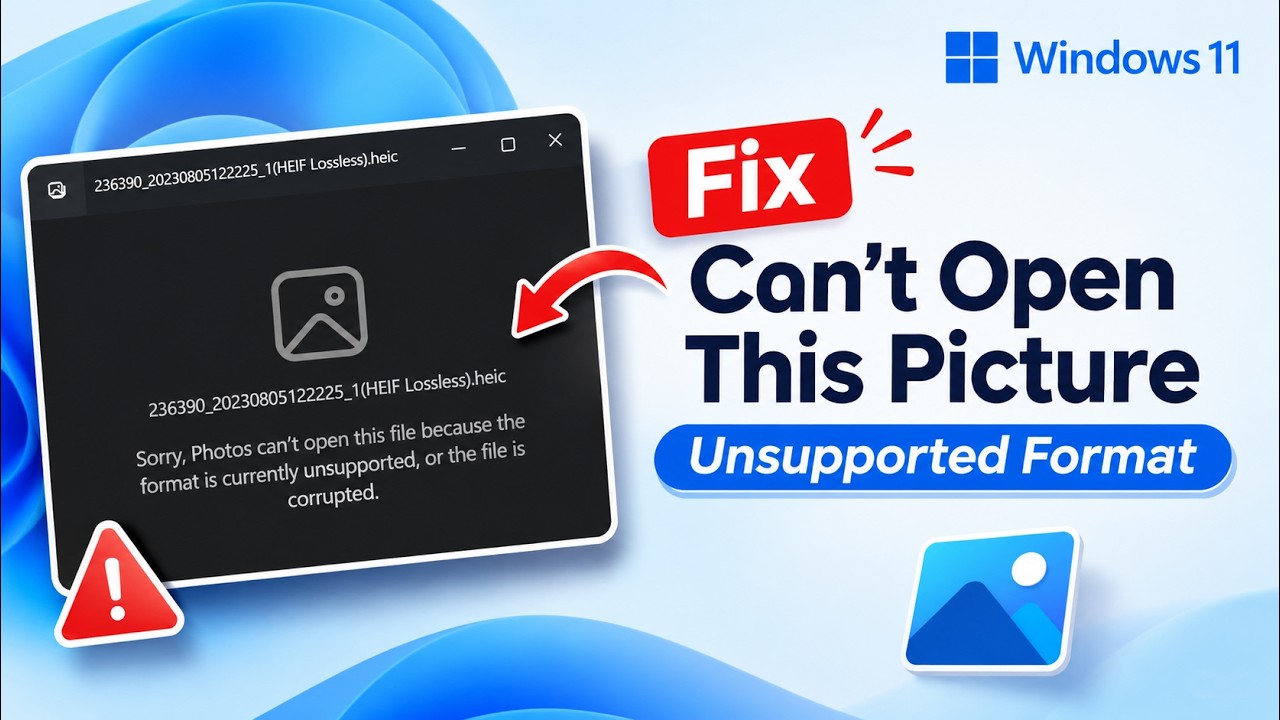
How to Fix "Can't Open This Picture" Unsupported Format in Windows 11
Encountering the frustrating "It looks like we don't support this file format" or "Can't Open This Picture" error in Windows 11? Whether dealing with iPhone HEIC photos, recovered pictures, or missing system codecs, this comprehensive tutorial will guide you through fixing photo viewing issues quickly and reliably without using questionable third-party conversion websites.
⚡ Quick Resources & Shortcuts
YouTube Viewer ShortcutArrived from our YouTube video? Here is the quick-reference cheat sheet for this walkthrough:
System Image Repair (Run in Command Prompt as Administrator):
DISM.exe /Online /Cleanup-image /Restorehealth
📍 File Permission Path: Right-Click Image → Properties → Security → Advanced → Permissions / Owner
Recommended Tools & Official Codecs:
- IrfanView: https://www.irfanview.com/ (Lightweight, robust format parser)
- ImageGlass: https://imageglass.org/ (Modern open-source photo viewer)
- HEIF Image Extensions: Search inside Microsoft Store or trigger directly via Settings prompt
- HEVC Video Extensions: Available via the Microsoft Store for advanced image container processing
Method 1: Test with Lightweight Open-Source Viewers
The default Windows 11 Photos app often refuses to open photos when there is a slight header mismatch, partial corruption, or missing container support. Before attempting complex repairs, test opening the image in a specialized image parser.
- Download and install either IrfanView or ImageGlass. Both are fully free and open-source.
- Locate the problematic picture file in File Explorer.
- Right-click the image, select Open with, and choose IrfanView or ImageGlass.
- If the image opens, the file is structurally intact. If IrfanView detects a wrong file extension (e.g., a PNG renamed to JPG), it will prompt you to automatically rename and correct the header.

Method 2: Fix Security Permissions & Ownership Blocks
Files recovered from damaged drives, synced across external storage, or transferred from other user profiles often inherit restricted access control lists (ACLs). When Windows Photos lacks read permissions, it outputs a generic "Unsupported Format" error.
- Right-click the affected picture (or the parent folder containing the pictures) and select Properties.
- In the General tab, check the bottom for a security notice: "This file came from another computer and might be blocked to help protect this computer." Check the Unblock box and click Apply.
- Switch to the Security tab and click the Advanced button at the bottom.
- Locate