
How to Fix Keyboard Typing Wrong Letters & Symbols in Windows
If pressing @ types " or your keyboard is outputting completely unexpected characters, your Windows input service has switched to an incorrect keyboard layout (such as UK or US-Dvorak) or enabled a laptop NumLock overlay. Follow this definitive guide from Tech Mash to restore normal typing instantly.
⚡ Quick Resources & Shortcuts
YouTube Viewer ShortcutArrived from our YouTube video? Here is the quick-reference cheat sheet for this walkthrough:
📍 Quick Click Path: Start → Control Panel → Regional and Language Options → Languages → Details
⌨️ Fast Keyboard Switch Hotkey: Alt + Shift or Win + Space (Cycles through active layouts instantly)
- Laptop NumLock Reset: Press
Fn + NumLock(orShift + NumLock) if letter keys type numbers. - Standard Required Layout:
English (United States) - US
Step-by-Step Troubleshooting Guide
Step 1: Check Hardware & NumLock Overlays (Quick Fix)
Many compact laptops embed a numeric keypad inside standard letter keys (like M, J, K, L typing 0, 1, 2, 3).
- Locate the Fn key in the lower-left corner and the NumLock (or Num Lk) key on the top row.
- Press Fn + NumLock simultaneously to toggle numeric override off.
- If symbols like @ and " remain swapped, continue to Step 2 to remove incorrect layouts.
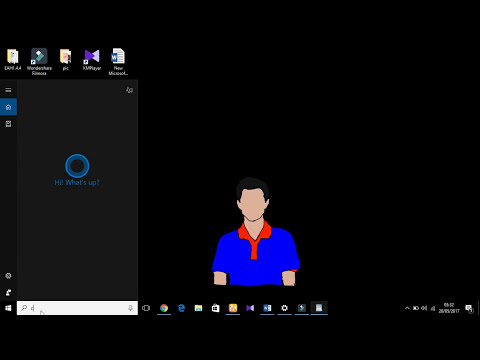
Step 2: Open Regional and Language Options
Windows manages active input keyboards through the central regional settings menu.
- Click the Start menu button.
- Open Control Panel (or press Win + R, type
control, and press Enter). - Locate and double-click Regional and Language Options (or Clock, Language, and Region).
Step 3: Access Installed Text Services
Multiple installed layouts allow Windows to switch inputs accidentally when hotkey combinations are pressed.
- In the Regional and Language Options window, select the Languages tab (or Keyboards and Languages tab).
- Under the Text services and input languages section, click the Details button (or Change keyboards...).
- You will see a list of all keyboards currently assigned to your operating system.
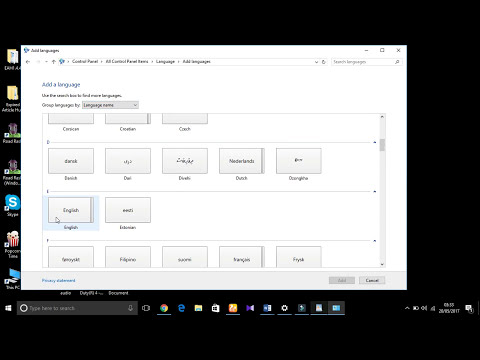
Step 4: Remove Conflicting Layouts & Keep Standard US
Removing duplicate or foreign layouts prevents the system from switching back automatically.
- Examine the Installed services list. Look for entries like United States-Dvorak, United Kingdom, or secondary languages.
- Select the unwanted layout and click the Remove button on the right-hand panel.
- When prompted with a confirmation dialog, click Yes.
- Repeat this process until only the standard US (English - United States) layout remains.
- Set the Default input language dropdown menu at the top to English (United States) - US.
- Click Apply, then click OK to save the changes.
Step 5: Test and Verify Key Mappings
Ensure all symbols match their physical key caps across text editors and web browsers.
- Press Win + R, type
notepad, and hit Enter. - Press Shift + 2 to confirm it outputs @.
- Press Shift + ' to verify it outputs ".