
How To Fix "No Wi-Fi Networks Found" When Wi-Fi Is Turned On in Windows 10 & 11
By Tech Mash • Step-by-Step Technical Guide
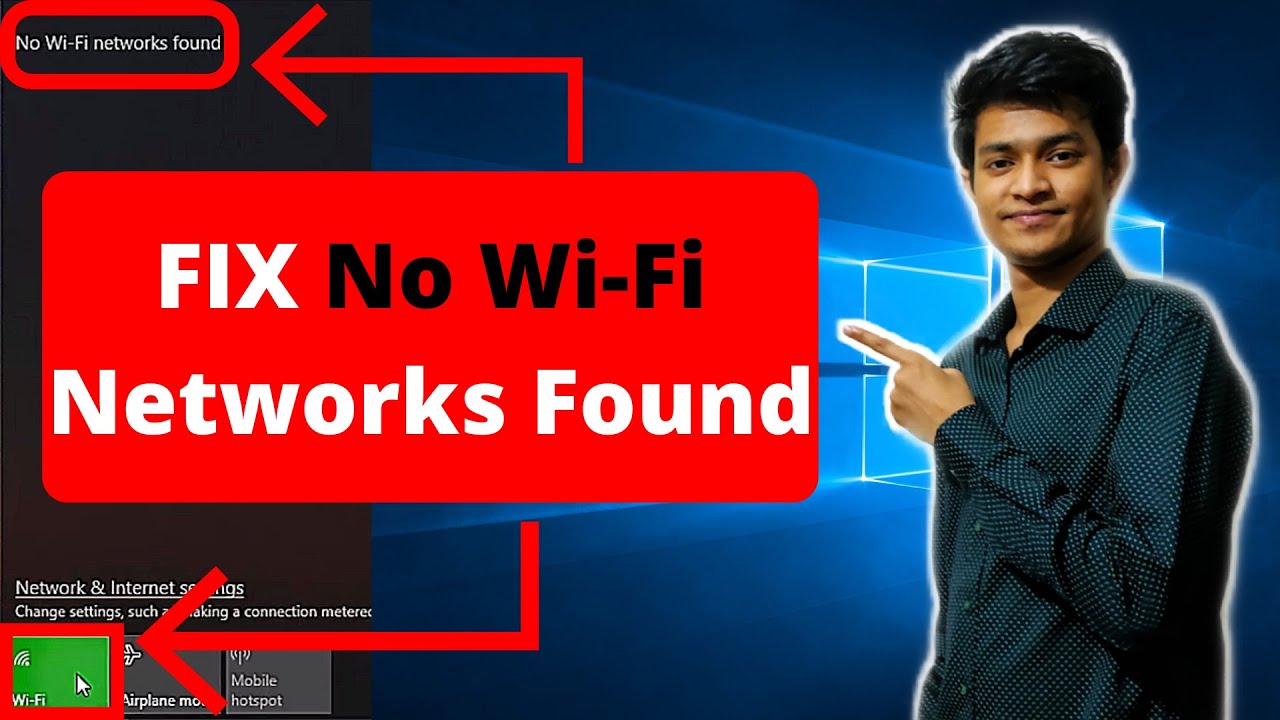
Few computer glitches are more frustrating than opening your network panel, seeing your Wi-Fi toggle enabled, and being met with the dreaded message: "No Wi-Fi networks found." Your phone or tablet might connect seamlessly to your home router, yet your Windows PC insists there are zero wireless networks available. This issue frequently stems from corrupted WLAN driver stacks, incompatibilities following a Windows upgrade, or misconfigured wireless region channels (such as channel 13 locks). Follow this troubleshooting guide to resolve the issue quickly.
⚡ Quick Commands, Tools & Downloads
YouTube Viewer ShortcutArrived from our YouTube video? Here are all the terminal commands, registry paths, and tool links referenced in the walkthrough:
devmgmt.msc
services.msc
netsh winsock reset
netsh int ip reset
- Device Manager Run Command:
devmgmt.msc(Directly access network adapters) - Windows Services Shortcut:
services.msc(To check WLAN AutoConfig) - Troubleshooting Resource: MiniTool Network Connection Guide
Why Is Wi-Fi Turned On, but No Networks Appear?
- Corrupt or Outdated WLAN Drivers: Updates from Windows 7, 8, or older Windows 10 builds often leave incompatible driver files behind, preventing your card from communicating with current wireless protocols.
- Channel & Region Restrictions: Routers broadcasting on Channels 12 or 13 may be invisible if your adapter’s region setting is locked to a frequency band where those channels are restricted.
- WLAN AutoConfig Service Glitch: If the background service responsible for discovering and configuring SSIDs freezes, Windows won't scan for networks.
- Hardware Fast Startup Cache: Windows hybrid shutdown can sometimes lock the Wi-Fi card into an unresponsive lower-power state.

Method 1: Update the Wi-Fi Network Adapter Driver
If this problem started immediately after a Windows update or fresh install, your operating system is likely using a generic or mismatched driver.
- Press Win + R on your keyboard, type
devmgmt.msc, and hit Enter to open Device Manager. - Expand the Network adapters branch.
- Look for your wireless adapter (usually contains terms like Wireless, WLAN, 802.11, Intel, Realtek, or Qualcomm).
- Right-click on your wireless network card and select Update driver.
- Click Search automatically for drivers.
- If Windows cannot find a new one online, select Browse my computer for drivers > Let me pick from a list of available drivers on my computer. Choose an alternate compatible version from the list and click Next.
Method 2: Uninstall the Adapter and Force Hardware Re-detection
When existing drivers are corrupted, overwriting them doesn't always clear bad state files. Completely removing the device clears the configuration cache.
- Open Device Manager (
devmgmt.msc). - Expand Network adapters and locate your Wi-Fi adapter.
- Right-click your adapter and choose Uninstall device.
- Important: If prompted with a checkbox that reads "Attempt to remove the driver for this device" or "Delete the driver software for this device", leave it unchecked unless you have an offline backup installer handy.
- Click Uninstall to confirm.
- From the top menu of Device Manager, click Action > Scan for hardware changes, or simply Restart your computer.
- Upon reboot, Windows will automatically detect the adapter and reinitialize the factory driver stack.
Method 3: Ensure WLAN AutoConfig Service Is Running
Windows relies on the WLAN AutoConfig service to detect, connect to, and display wireless networks. If this service is stopped or set to manual, your network list remains empty.
- Press Win + R, type
services.msc, and press Enter. - Scroll down to find WLAN AutoConfig.
- Double-click it to open its Properties.
- Set Startup type to Automatic.
- If the Service status is not "Running", click the Start button.
- Click Apply, then OK. Check your taskbar Wi-Fi menu to confirm visible networks.
Pro Tip: Check your router's wireless configuration. Some older Wi-Fi cards do not support 5GHz bands or specific 2.4GHz channels (like channel 12 or 13). Log into your router's web admin console and ensure that the 2.4GHz channel selection is set to Auto or manually bound to channels 1, 6, or 11.