
How to Fix Screen Brightness That Won't Change in Windows 11 and Windows 10
Few things are as frustrating as a computer screen stuck at maximum blinding glare late at night—or so dim that you can barely read your documents during a bright afternoon. Adjusting screen brightness is something most of us take for granted, but after a recent Windows update or driver conflict, you might discover that your brightness slider is completely unresponsive or missing entirely.

If your screen brightness won't change, or if your display randomly fluctuates without your input, you're not alone. This guide walks you through two proven, step-by-step solutions using built-in Windows diagnostic tools—no third-party software required.
Why Is the Brightness Slider Not Working?
In the vast majority of cases, brightness adjustment failures stem from communication breakdowns between Windows and your display hardware. Specifically, Windows uses generic Plug and Play (PnP) monitor drivers to regulate brightness signals. When system updates occur, these monitors can accidentally be disabled or shadowed by outdated "ghost" device profiles, cutting off your control panel and hotkeys from the physical panel.
Method 1: Re-Enable Your Generic PnP Monitor
If Windows updates have disabled your monitor driver, your brightness slider will freeze. Re-enabling the device in Device Manager immediately restores normal control.
- Press the keyboard shortcut
Windows Key + Rto launch the Run dialog box. - Type
devmgmt.mscinto the open field and press Enter or click OK. - In the Device Manager window, scroll down and click the arrow next to Monitors to expand the category.
- Look for Generic PnP Monitor (or your specific monitor brand name). If there is a small down-arrow icon on it, the device is currently disabled.
- Right-click on the monitor and select Enable device.

Quick Tip: If your monitor already appears enabled, right-click it, select Disable device, wait 5 seconds, and then click Enable device to force Windows to restart the display configuration.
Once completed, reboot your PC and test your brightness function keys or the action center slider.
Method 2: Remove Hidden and Conflicting PnP Monitors
If re-enabling the device didn't resolve the issue, duplicate or corrupted ghost monitor entries are likely blocking your display commands. Windows keeps records of previously connected displays, and these stale configurations frequently interfere with your active monitor.
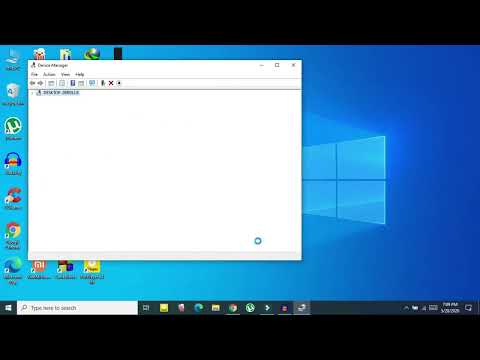
- Press
Windows Key + R, typedevmgmt.msc, and hit Enter to open the Device Manager. - From the top menu bar, click on View and select Show hidden devices.
- Expand the Monitors dropdown list again.
- You will now notice some monitor icons appearing faded or translucent. These are non-present or cached "ghost" devices.
- Right-click on each translucent monitor entry and select Uninstall device. Confirm any prompt that appears.
- Leave only your active, non-translucent monitor intact.
Note: Uninstalling hidden monitors is completely safe. Windows will automatically rebuild the correct display profile upon reboot.
After clearing out hidden devices, restart your computer to apply the clean device state.
Additional Troubleshooting Steps
If you've followed the steps above and still cannot adjust screen levels, check these secondary factors:
- Update Display Adapters: In Device Manager, expand Display adapters, right-click your dedicated or integrated graphics card (Intel, AMD, or NVIDIA), and select Update driver → Search automatically for drivers.
- Check Windows Dynamic Lighting / Auto-Brightness: Head to
Settings > System > Displayand ensure options like "Change brightness automatically when lighting changes" or "Content adaptive brightness" are toggled off if your screen fluctuates on its own. - Desktop Monitors: Remember that external desktop monitors connected via HDMI or DisplayPort frequently require brightness adjustments using the physical hardware buttons located on the bezel or underside of the monitor itself.
Key Takeaways
- A frozen brightness slider in Windows 11/10 is usually caused by disabled or ghost monitor driver entries.
- Re-enabling the Generic PnP Monitor under Device Manager is the quickest fix.
- Enabling Show hidden devices allows you to clear out conflicting obsolete driver profiles.
- A system restart is essential after modifying driver states to let Windows re-initialize screen controls.
Watch the Full Video Walkthrough
Prefer following along visually? Watch the complete step-by-step guide produced by Tech Mash below: