
How to Take a Long Screenshot in MIUI (Step-by-Step Guide)
Standard screenshots on Android are limited to whatever fits inside your current viewport. When you need to capture full web articles, long chat conversations, receipts, or technical documentation, stitching multiple images together is tedious. Introduced in MIUI 8, Xiaomi's built-in Long Screenshot (Extend) feature lets you capture full-length scrolling content in seconds.
⚡ Quick Resources & Shortcuts
YouTube Viewer ShortcutArrived from our YouTube video? Here is the quick-reference cheat sheet for this walkthrough:
📍 Quick Click Path: Target Screen → Power + Volume Down (or Notification Toggle) → Tap Floating Preview (Top-Right) → Tap "Extend" → Scroll to Desired Point → Tap "Done"
- Xiaomi / Redmi / POCO device running MIUI 8 or higher (MIUI 7 and earlier lack native scrolling capture).
- Content must be vertically scrollable (e.g., Chrome, Mi Browser, WhatsApp, Settings).
- Saved Location:
Internal Storage → DCIM → Screenshots(accessible via the MIUI Gallery app).
Step-by-Step Instructions
Step 1: Open Your Content & Trigger the Screenshot
Navigate to the webpage, chat thread, or document you want to capture. Make sure you are at the starting position (usually the very top) of the content. You can trigger a standard capture using any of the three built-in MIUI shortcuts:
- Hardware Button Combination: Press and hold the Volume Down (-) and Power buttons simultaneously.
- Notification Shade Toggle: Swipe down from the top edge of your screen to reveal the quick toggles and tap the Screenshot icon.
- Quick Ball (Touch Assistant): Tap your floating Quick Ball icon and choose the Screenshot shortcut.
Step 2: Tap the Floating Thumbnail Within 5 Seconds
Immediately after taking the screenshot, an animated thumbnail preview will appear in the top-right corner of your screen. This preview stays visible for approximately 5 seconds before dismissing automatically. Tap this thumbnail promptly to open the quick editor controls.
Step 3: Tap the 'Extend' Option
Once the preview window expands, look at the action bar along the bottom of the screen. Tap the Extend (or Scroll on newer MIUI/HyperOS builds) button located beneath the captured frame.
Step 4: Scroll the Content & Finalize
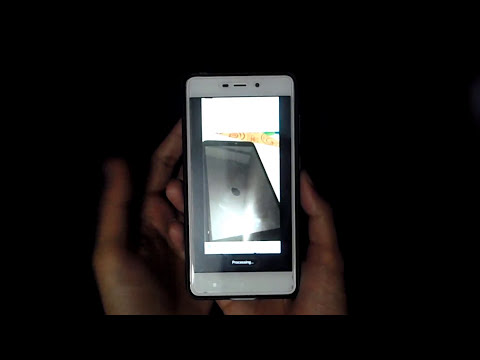
MIUI will automatically start scrolling down the page and stitching the image in real time. You have two options here:
- Allow the device to scroll automatically until it hits the footer of the page.
- Manually swipe up to speed up the process, and tap Done at the bottom of the screen whenever you have reached the exact ending point you want to save.
Step 5: View and Manage in the Gallery
Your newly created scrolling screenshot is processed and saved automatically. Open the Gallery app and navigate to the Screenshots album. From there, you can zoom in with high detail, crop out unnecessary header bars, or share the single combined image via WhatsApp, email, or cloud storage.
💡 Troubleshooting Tip
If the Extend button is disabled or grayed out, the app you are currently using does not support vertical scrolling (or you have already reached the absolute bottom of the document). Make sure you start the capture from the top of an active scrolling view in supported browsers or feed-based apps.