
Taskbar Not Hiding in Fullscreen Mode on Windows 10 & 11: How to Fix
Few things disrupt a gaming session or movie stream quite like a stubborn Windows taskbar refusing to disappear. When you switch to fullscreen mode on YouTube, Netflix, media players, or video games, Windows is supposed to automatically lower the taskbar layer behind the active program. If the taskbar remains frozen on top of your screen, a minor glitch in the Windows Explorer process is usually to blame. Follow this step-by-step tutorial to resolve the problem instantly without rebooting your computer.
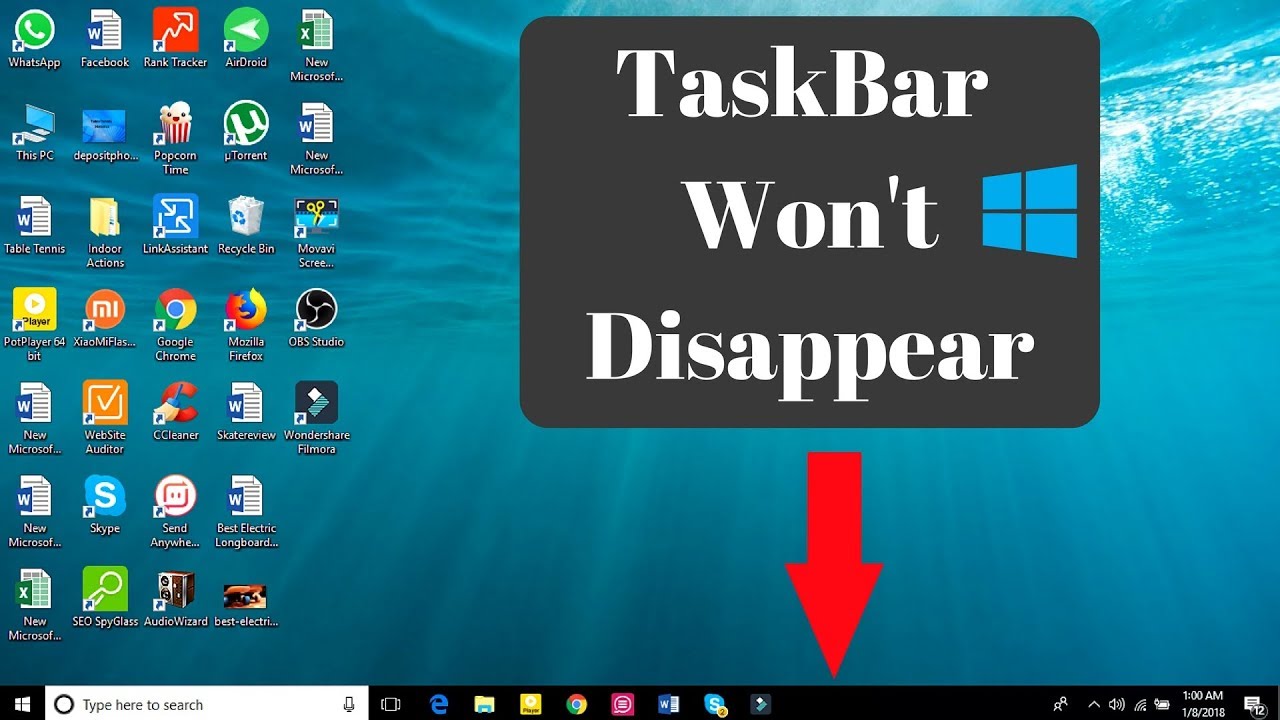
⚡ Quick Resources & Shortcuts
YouTube Viewer ShortcutArrived from our YouTube video? Here is the quick-reference cheat sheet for this walkthrough:
📍 Quick Click Path: Right-Click Taskbar → Task Manager → Processes tab → Windows Explorer → Restart
⌨️ Fast Keyboard Shortcut: Press Ctrl + Shift + Esc to open Task Manager directly.
taskkill /f /im explorer.exe && start explorer.exe
- Built-in Tool: Windows Task Manager (
taskmgr.exe) - Applies To: Windows 10 & Windows 11 (Home, Pro, Enterprise, Education)
Why Does the Taskbar Stay Visible in Fullscreen?
The Windows graphical interface (including the desktop icons, Start Menu, and taskbar) is managed by a background process called explorer.exe. When an application requests an exclusive fullscreen state, Windows Explorer yields focus. However, background notifications, pending taskbar badges, or interrupted process states can cause Explorer to hang, leaving the taskbar pinned as the topmost display layer. Restarting the process flushes its cache and restores normal display layering.
Step-by-Step: Restarting Windows Explorer
Step 1: Open the Windows Task Manager
Right-click on an empty space on your Taskbar and select Task Manager from the context menu. Alternatively, press the keyboard combination Ctrl + Shift + Esc to launch it instantly.
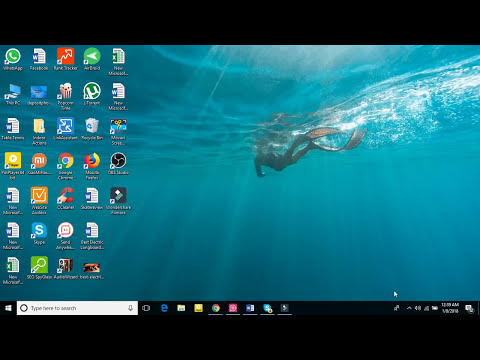
Note: If Task Manager opens in compact view, click More details at the bottom of the window to expand the full process tree.
Step 2: Locate Windows Explorer in the Process List
Stay on the Processes tab. Scroll down through the list until you reach the Windows Processes section, or simply click any item in the list and press the W key several times until Windows Explorer is highlighted.
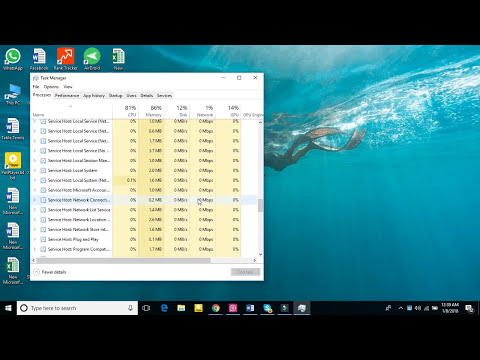
Step 3: Restart the Process
With Windows Explorer selected:
- Click the Restart button located in the bottom-right corner of the window (on Windows 11, this option appears in the top action bar).
- Alternatively, right-click on Windows Explorer and select Restart.
Your desktop icons, open folders, and taskbar will disappear for a brief second as the shell reloads, and then reappear. Return to your YouTube video, media player, or game and toggle fullscreen mode (F11 or the fullscreen icon)—the taskbar should now hide properly.
Alternative Fix: Auto-Hide Taskbar Settings
If the taskbar continues to linger after restarting Windows Explorer, verify your taskbar auto-hide configuration:
- Right-click an empty area on your taskbar and choose Taskbar settings.
- On Windows 10, toggle Automatically hide the taskbar in desktop mode to On, then back to Off to refresh the preference.
- On Windows 11, expand Taskbar behaviors and toggle Automatically hide the taskbar.
- Ensure notification badges are not continuously blinking (an active notification badge from Discord, Slack, or an antivirus client can force the taskbar to remain visible).
Compatibility Notice
This troubleshooting guide applies to all modern editions of Windows 10 and Windows 11 (Home, Pro, Enterprise, and Education) across all major hardware manufacturers, including Dell, HP, Lenovo, ASUS, Acer, Toshiba, Samsung, and Microsoft Surface devices.