
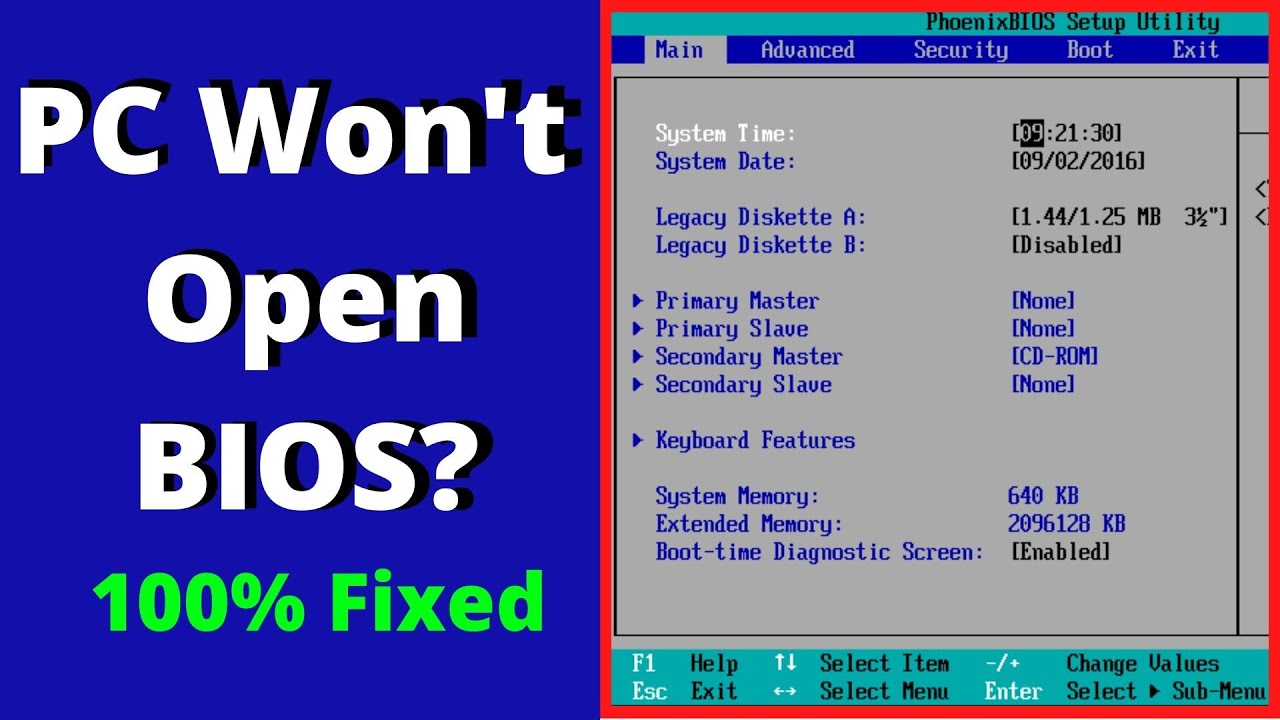
Computer Can't Enter BIOS? | How to Force Open BIOS (2026 Complete Tutorial)
If your computer skips right past your motherboard logo screen straight into Windows, modern hardware speeds or Windows Fast Startup are likely blocking your keyboard interrupts. This guide breaks down three reliable methods to force your laptop or desktop PC into the BIOS/UEFI setup utility.
⚡ Quick Resources & Shortcuts
YouTube Viewer ShortcutArrived from our YouTube video? Here is the quick-reference cheat sheet for this walkthrough:
📍 Quick Click Path: Start → Settings → System → Power & sleep → Additional power settings → Choose what the power buttons do → Change settings that are currently unavailable → Uncheck Turn on fast startup
- Official Tech Mash Written Tutorial & Article
- Common BIOS Keys: ASUS/Acer/Dell/Gigabyte (F2 or DEL), HP (F10), Lenovo (F1, F2, or Fn+F2), MSI (DEL), Surface (Hold Volume Up).
Reference: Common BIOS Hotkeys by Brand
Make sure you are tapping the correct key repeatedly as soon as the power light turns on:
| Brand | Dedicated BIOS / UEFI Key |
|---|---|
| ASUS / ASRock / Acer / Gigabyte | F2 or DEL |
| Dell | F2 or F12 |
| HP | F10 |
| Lenovo Laptops | F2 or Fn + F2 (ThinkPads: Enter then F1) |
| Lenovo Desktops | F1 |
| MSI / Zotac / ECS | DEL |
| Samsung / Toshiba / Origin PC | F2 |
| Microsoft Surface Tablets | Press and hold Volume Up while pressing Power |
Method 1: Turn Off Fast Startup in Windows Power Options
Windows Fast Startup hibernates your kernel session instead of performing a clean shutdown, skipping the POST key-detection window.
- Click the Start Menu and select the Gear icon (Settings).
- Inside the Settings app, click on System.
- From the left-hand navigation pane, select Power & sleep.
- Scroll down to the Related settings header and click Additional power settings to open the classic Control Panel.
- In the left column, click Choose what the power buttons do.
- Click the link near the top that reads Change settings that are currently unavailable to unlock administrative settings.
- Under the Shutdown settings section below, uncheck the box next to Turn on fast startup (recommended).
- Click Save changes at the bottom of the window.
- Fully shut down your computer, press the power button, and rapidly tap your designated BIOS key.

Method 2: Use "Force Shutdown" to Trigger a Full Hardware POST
A hard reset interrupts standard hybrid boot memory dumps, forcing the motherboard firmware into a deliberate boot cycle with an extended key-polling window.
- While your computer is running inside Windows, press and hold down the physical power button for 5 to 8 seconds until the machine completely cuts power.
- Wait 5 seconds for the capacitors and drives to settle.
- Press the power button once to turn the PC back on, and instantly begin tapping your BIOS key repeatedly (once every half-second).
- If the system skips the BIOS on the first try, repeat this hard power-cut cycle up to two or three times.
Method 3: Reset the CMOS Battery (Last Resort Hardware Fix)
If corrupted NVRAM settings or Ultra-Fast Boot modes disable USB input at startup, clearing the CMOS restores factory defaults and re-enables keyboard polling.
- Shut down your computer, turn off the PSU toggle switch, and unplug the power cable from the wall (unplug the main battery if using a laptop).
- Open the PC side panel or laptop bottom cover to expose the motherboard.
- Locate the coin-shaped silver CR2032 battery on the motherboard.
- Gently press the metal release latch to pop the CMOS battery out of its socket.
- Leave the battery out for 5 to 10 minutes (or press the chassis power button for 30 seconds to drain residual charge).
- Reinsert the battery with the positive (+) side facing up, reassemble the chassis, and reconnect power.
- Power on the PC; the motherboard will detect reset settings and automatically halt at a prompt asking you to press F1, F2, or DEL to enter BIOS setup.
Summary & Next Steps
In almost all modern systems, disabling Fast Startup solves the problem immediately without needing to open your computer case. If you continue encountering startup or system stability problems after adjusting your BIOS settings, check our related guides on fixing random shutdowns and black screen boot issues.